- Commissioning
- Connect devices
- Heat pump via EEBus
Heat pump via EEBus
This page describes the connection of various heat pumps to the SOLARWATT Manager via EEBus.
Vaillant heat pumps
Compatibility
Interface: Ethernet, Wi-Fi
Interface: Ethernet, Wi-Fi
| Manager flex 1.0 / flex 1.5 / rail |
|---|
Vaillant heat pumps via the following Internet modules: Internet module sensoNET VR 921 Internet module Vaillant Gateway VR940f Internet module VR 920 |
Installation and configuration
- Install the heat pump according to the manufacturer's installation instructions
- Connect the Internet module, router and Manager as shown in the illustration
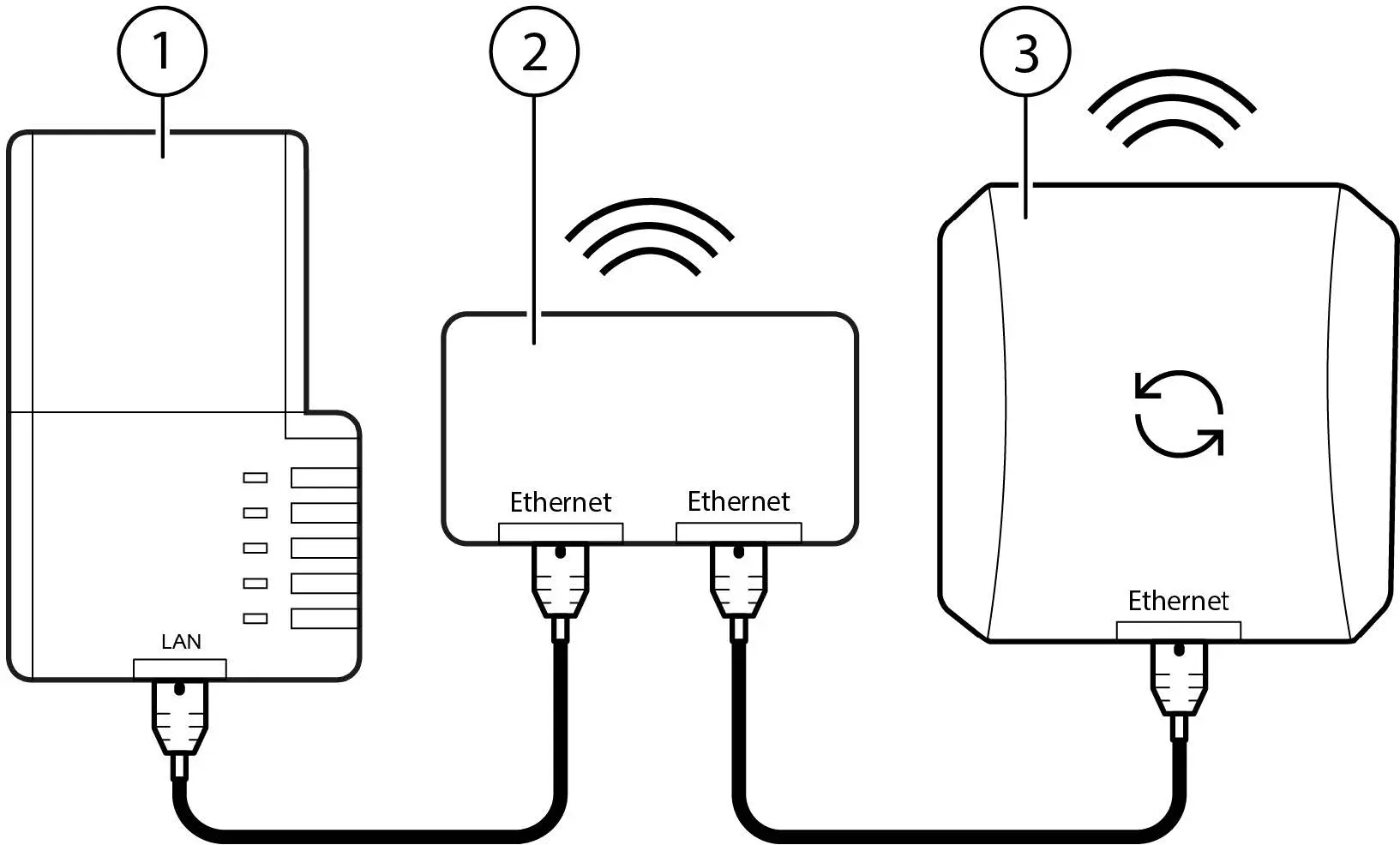
| 1 | Manager |
| 2 | Router |
| 3 | Internet module |
- Switch on the Internet module according to the manufacturer's instructions and connect it to the Internet.
Device search in SmartSetup
- Starting the SmartSetup
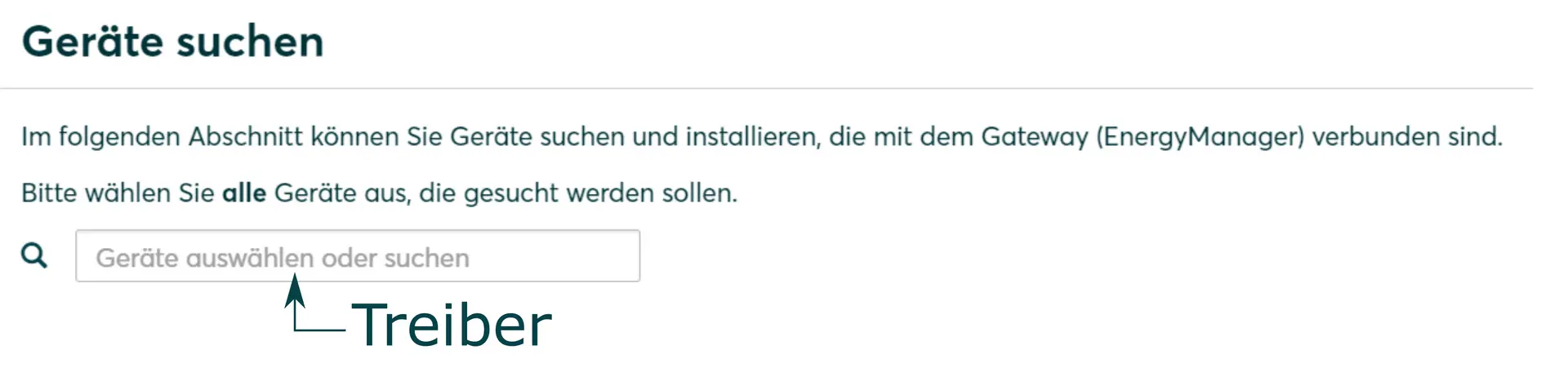
- In the drop-down menu, select Select devices or search for the EEBus interface driver.
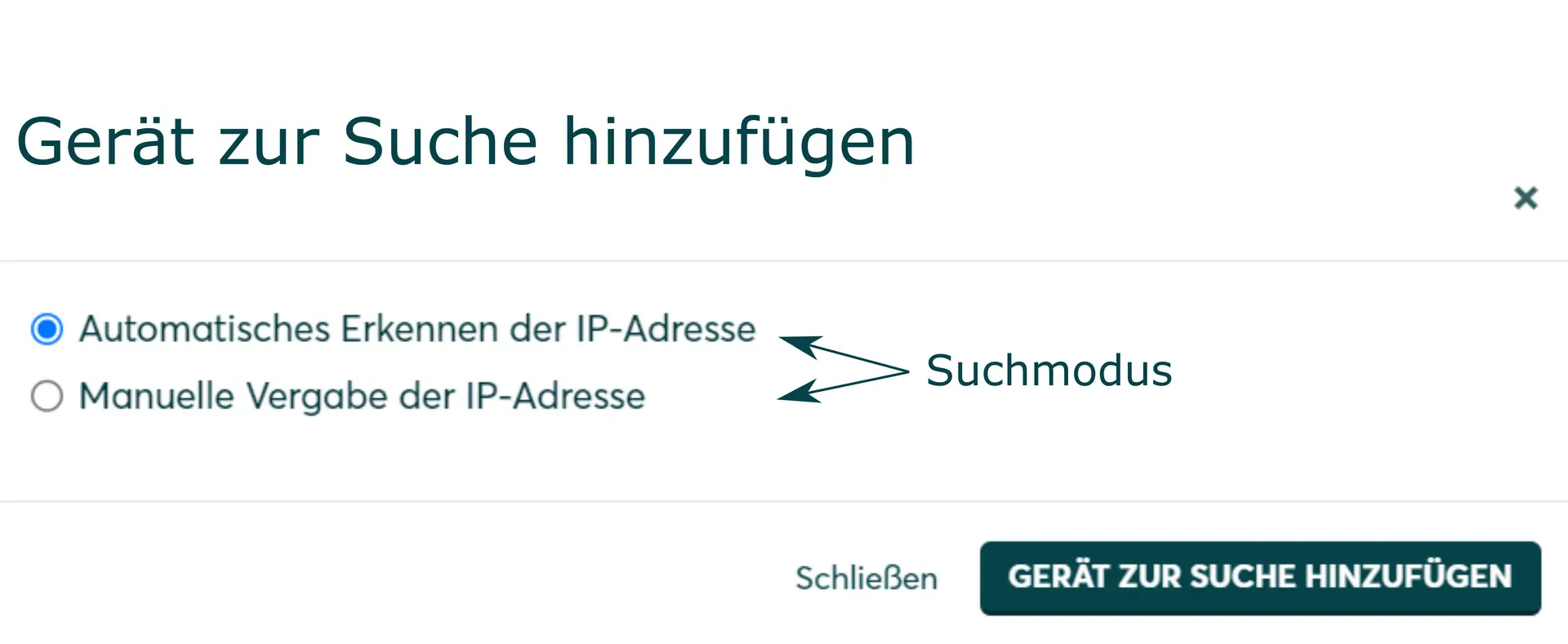
- Click Add device to search.
- Click Search and install devices.
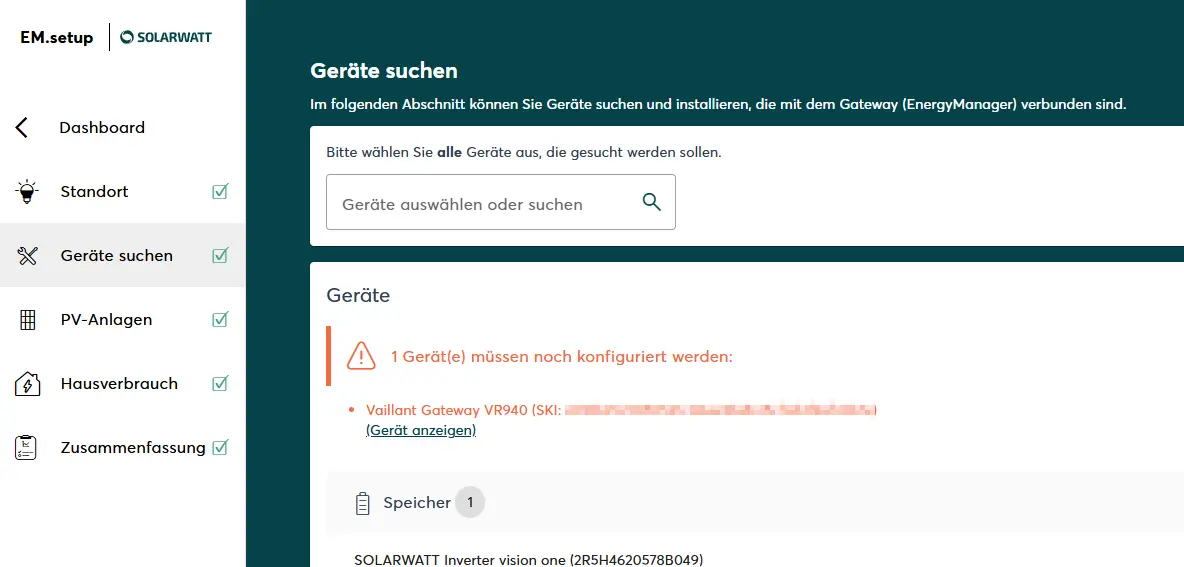
The Internet module is installed and displayed in the device list with the Note Device(s) still need to be configured.
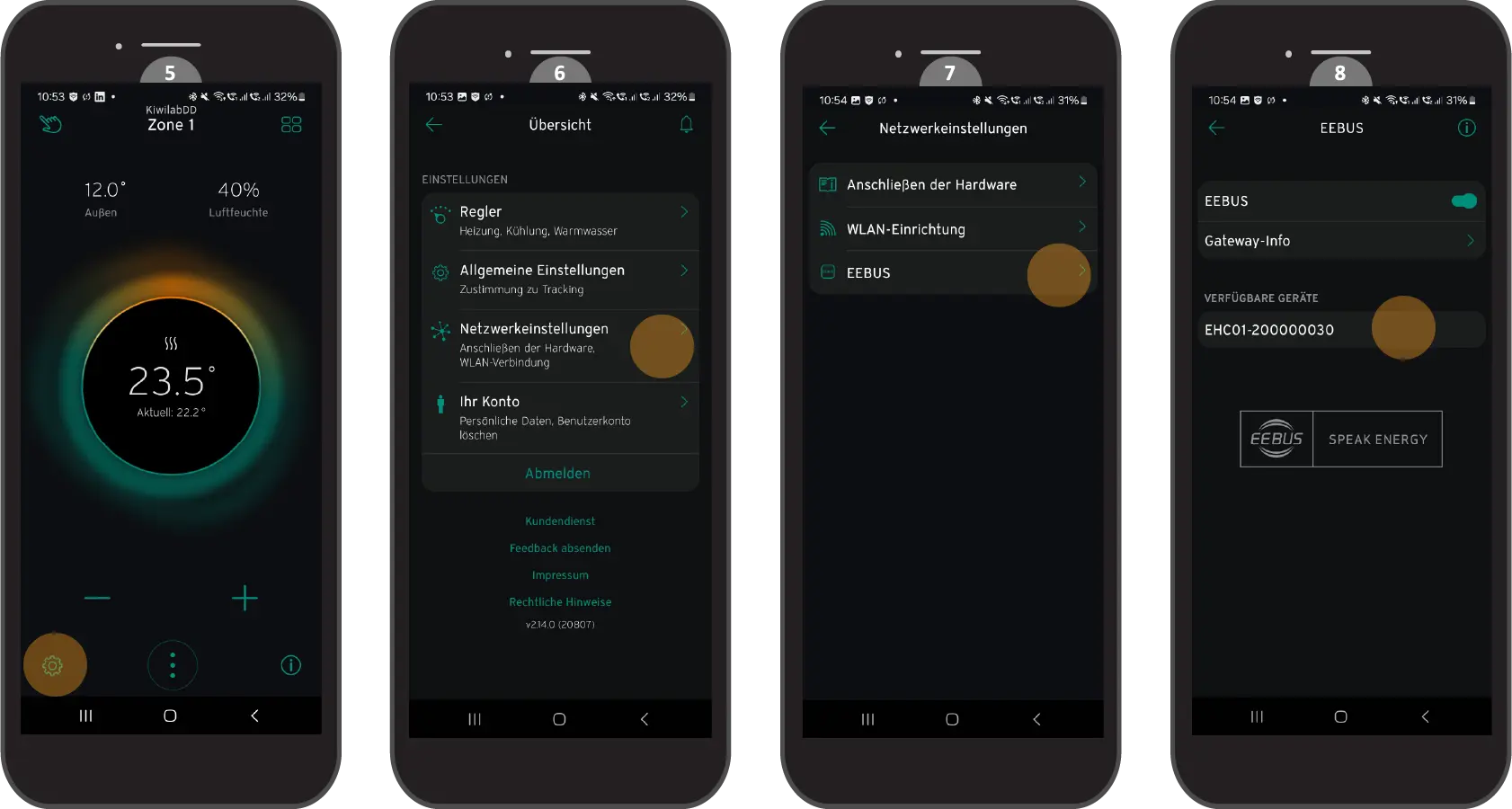
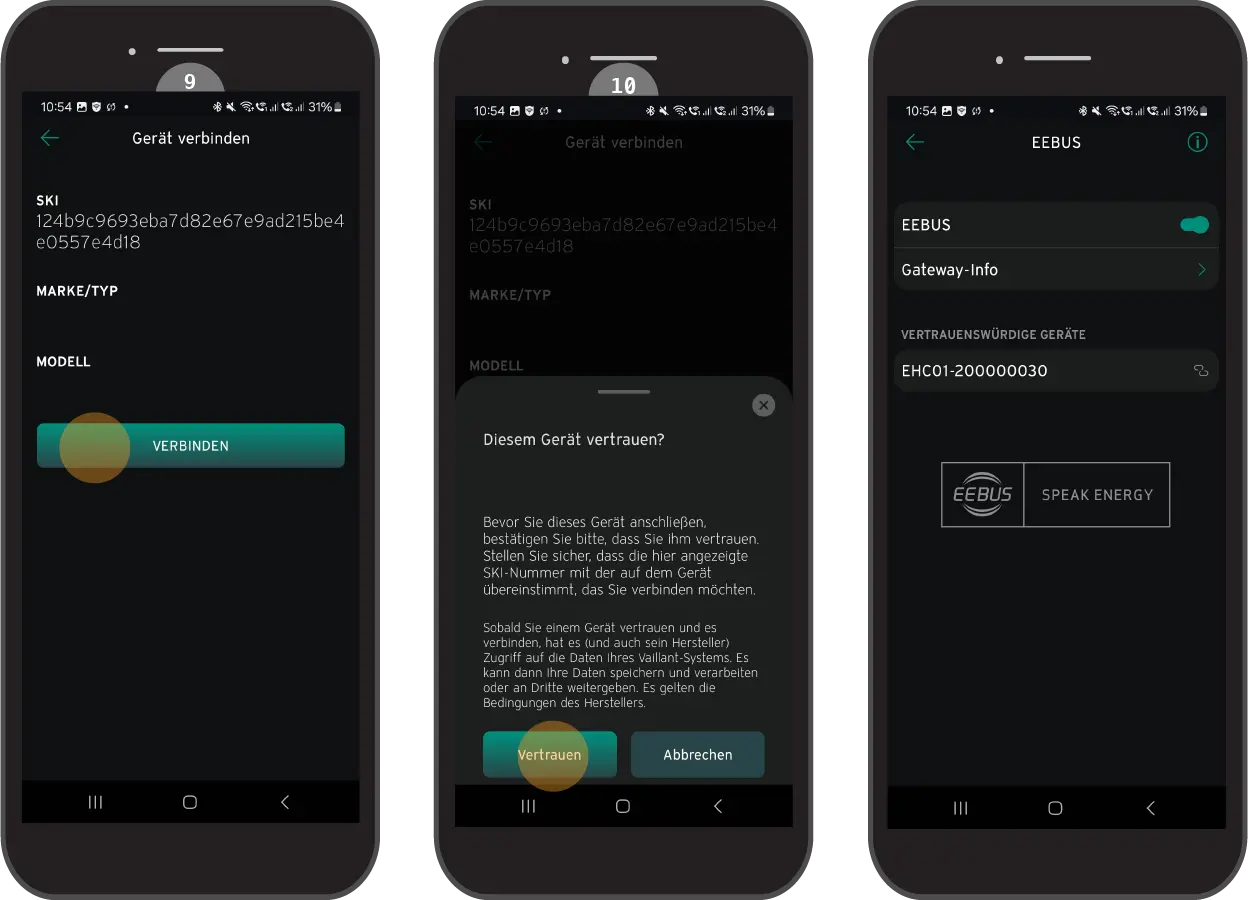
- open myVAILLANT app
- Open the Settings menu
- Select the Network settings menu item.
- Select the EEBUS menu item
- Select the Manager in the Available devices menu item
- Connect
- Agree to the message 'Trust this device'
The Manager is displayed in the menu item Trusted devices.
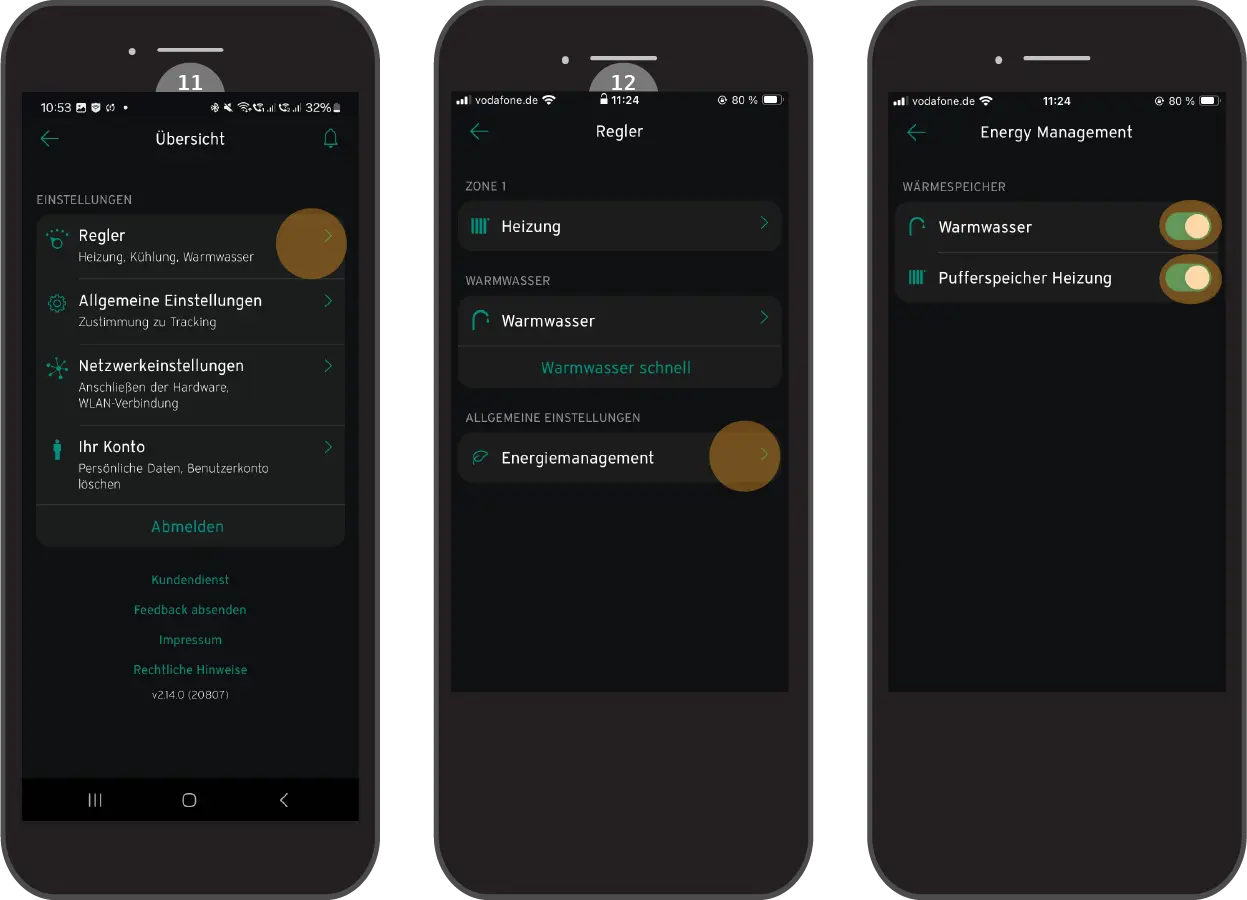
- Return to the Settings menu and select the Controller menu item.
- Select the Energy management menu item and ensure that all sliders are activated for the Heating and Hot water options.
The device must then be activated as trusted via the device settings in the Manager SmartSetup .
- Returning to the Manager SmartSetup/device search
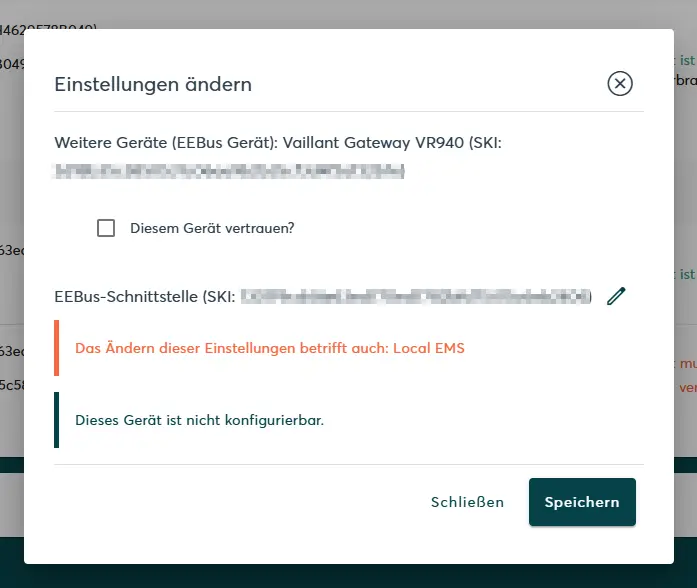
- Call up the settings (Show device / geer wheel symbol) of the Internet module
- Activate selection box 'Trust this device'.
- Save
BOSCH heat pumps
Compatibility
Interface: Ethernet, Wi-Fi
Interface: Ethernet, Wi-Fi
| Manager flex 1.0 / flex 1.5 / rail |
|---|
| BOSCH Gateway Module Connect Key K 40 RF |
Installation and configuration
- Install the heat pump according to the manufacturer's installation instructions
- Connect the Internet module, router and Manager as shown in the illustration
| 1 | Manager |
| 2 | Router |
| 3 | Internet module |
- Switch on the Internet module according to the manufacturer's instructions and connect it to the Internet.
Device search in SmartSetup
- Starting the SmartSetup
- In the drop-down menu, select Select devices or search for the EEBus interface driver.
- Click Add device to search.
- Click Search and install devices.
The Internet module is installed and displayed in the device list with the Note Device(s) still need to be configured.
- Activate the Bosch heat pump display to access the settings
- Open the Service menu and select System settings
- Select the Commissioning menu item under EEBUS
- SelectSearch EEBus devices and follow the instructions
The search for existing EEBus devices is started.
- Select the corresponding EEBus device and select Trust device
Coupling with the EEBus device takes place.
A confirmation message appears if the connection is successful.
The device must then be activated as trusted via the device settings in the Manager SmartSetup .
- Returning to the Manager SmartSetup/device search
- Call up the settings (Show device / geer wheel symbol) of the Internet module
- Activate selection box 'Trust this device'.
- Save
WOLF heat pumps
Compatibility
Interface: Ethernet
Interface: Ethernet
| Manager flex 1.0 / flex 1.5 / rail |
|---|
| WOLF Link Home with firmware version ≥ 5.00 |
Installation and configuration
- Install the communication module according to the manufacturer's installation instructions
- Select the WOLFLINK-(...) network in the Wi-Fi settings of the smartphone
- Enter the password from the housing of the communication module
- If the message WOLFLINK-(...) has no internet access is displayed: confirm with Yes.
- Open the browser on the smartphone, enter http://192.168.1.1 in the address bar and confirm.
- Install and configure the heat pump according to the manufacturer's Installation instructions
- Connect the communication module, router, Manager and heat pump as shown in the illustration
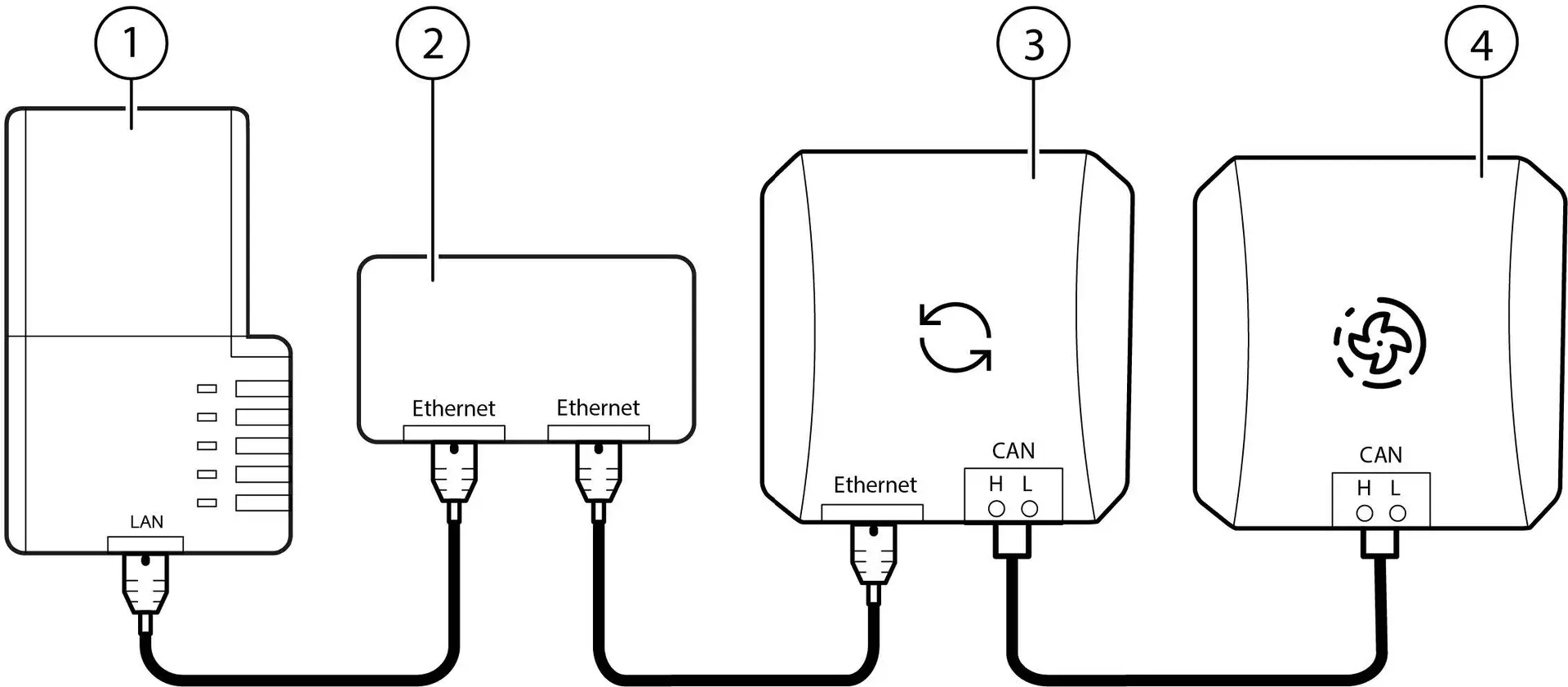
| 1 | Manager |
| 2 | Router |
| 3 | Internet module |
| 4 | Heat pump |
- Switch on the Internet module according to the manufacturer's instructions and connect it to the Internet.
- In the WOLF Smartset app, open the settings for trusting devices and activate the communication module as trusted
Device search in SmartSetup
- Starting the SmartSetup
- In the drop-down menu, select Select devices or search for the EEBus interface driver.
- Click Add device to search.
- Click Search and install devices.
The Internet module is installed and displayed in the device list with the Note Device(s) still need to be configured.
- In the WOLF Smartset app, open the settings for trusting devices and activate the communication module as trusted
The device must then also be activated as trusted via the device settings in the Manager SmartSetup .
- Return to the Manager SmartSetup/Device search
- Call up the settings (Show device / geer wheel symbol) of the Internet module
- Activate selection box 'Trust this device'.
- Save