- Commissioning
- Connect devices
- Shelly 1 Mini Gen3
Shelly 1 Mini Gen3
This page describes how to install and set up a Shelly 1 Mini Gen3 on a SOLARWATT Manager.
Compatibility and Applications
| Manager flex 1.0 / flex 1.5 / rail | Firmware | |
| Shelly 1 Mini Gen3 |
| > 10.25.24.1 |
Installation and Configuration
Interface: Wi-Fi
; Wi-Fi frequency band: 2.4 GHz
; Wi-Fi frequency band: 2.4 GHz
Related Documents
Integration into the Local Network
During the initial setup, the Shelly device creates a Wi-Fi access point.
- Connect a suitable device to the Shelly device’s Wi-Fi access point.
- Open the Shelly device’s user interface in a browser (IP address: 192.168.33.1)
The Shelly device can be integrated into the local network via Wi-Fi.
Wi-Fi Setup
- In the Settings > Wi-Fi menu, enable the connection to an existing Wi-Fi network. Enter the name and password of the local network.
- The Shelly device will be assigned a new IP address. If you want to assign a static IP address, check the corresponding box and enter an IP address. In the router’s user interface, you can view the IP address range of your home network and the IP addresses that have already been assigned.
- Disable the Wi-Fi access point
Device Search in SmartSetup
- Starting SmartSetup
- From the " Select or Search for Device " drop-down menu, select the appropriate driver according to the table below.
- Enter the required specifications according to the table below:
- Search Mode
- IP address or hostname (if applicable)
- Click “Add Device to Search.”
- Add additional devices to the search, if necessary.
- After adding all devices to be searched for, click " Search for and Install Devices."
You can recognize correctly installed devices by the message: "Device is installed" in the device list. The list also displays the current generation data.
- If necessary, connect additional devices.
- Continue with SmartSetup PV plants.
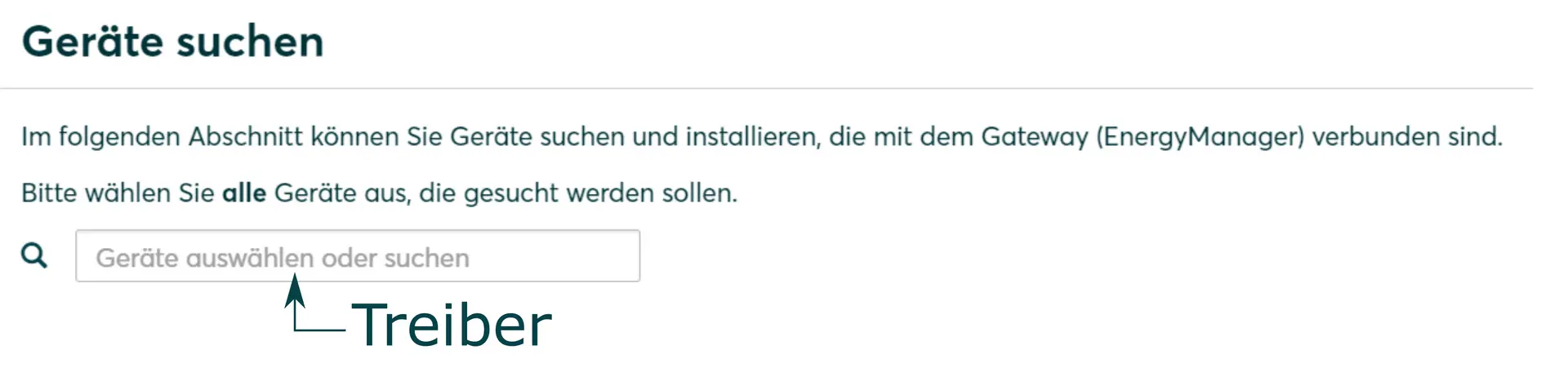
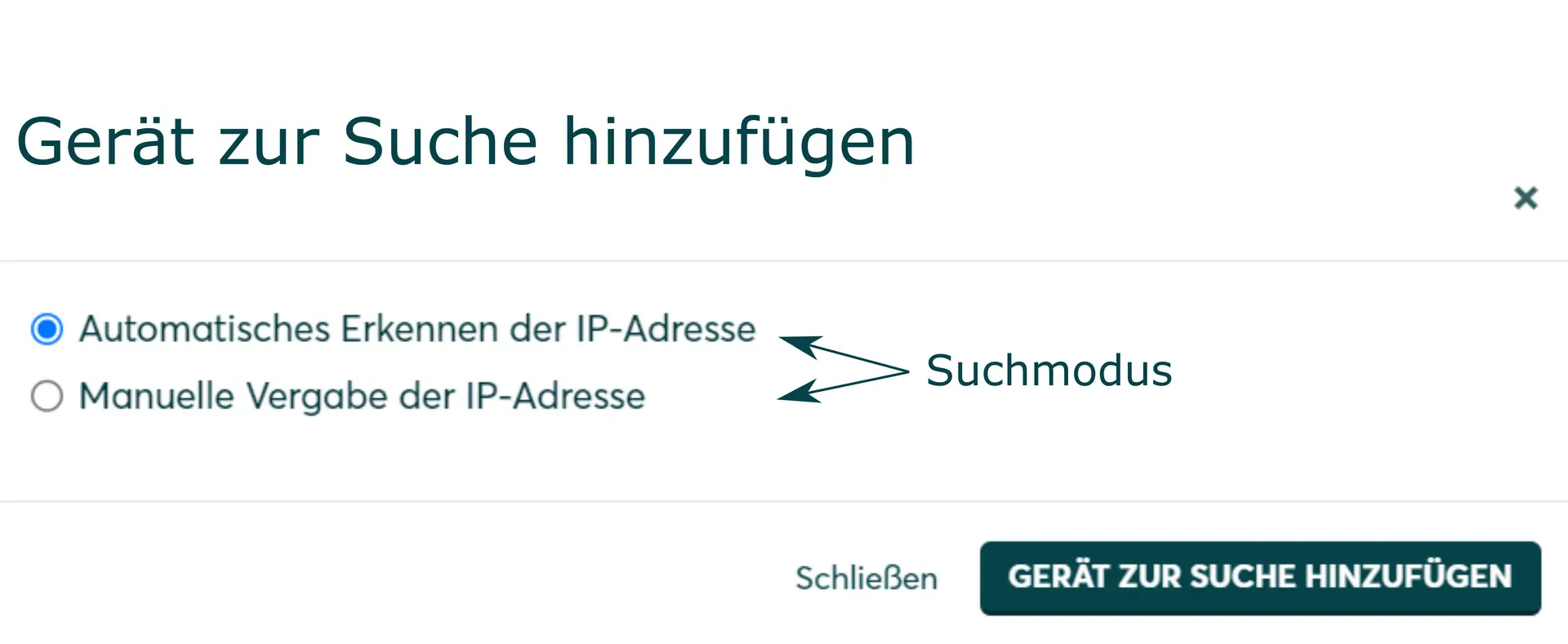
Driver Selection During Device Search
| Manager flex 1.0 / flex 1.5 / rail | ||
|---|---|---|
| Driver | Search Mode | |
| Shelly 1 Mini Gen3 | Shelly Device | Automatic IP Address Detection |
troubleshooting
If the device cannot be found via the automatic search or automatic IP detection, check whether the device is available on the local network (via a network scan—please note that a network scan requires your customer’s prior consent—or by accessing the router’s local user interface).
If necessary, restart the devices.
You can alsodetermine the hostname via the Shelly configuration interface (Internet & Security > WiFi mode – Access Point) .