- Commissioning
- Connect devices
- DTSU 666 (three-phase)
DTSU 666 (three-phase)
This page describes how to install a DTSU 666 (three-phase) on a SOLARWATT Manager. This meter is typically integrated via a battery system. However, a direct connection via RS485 is also possible.
Compatibility
| Interface | Applications | |
|---|---|---|
| Manager flex / rail |
|
|
|
|
Connecting DTSU 666 to the Manager
Connection via Battery System
The DTSU meter can be used as the main meter on the Manager, and the connection is established via SOLARWATT Battery vision and Inverter vision.
Connecting devices: SOLARWATT Battery vision & Inverter vision.
Direct connection via RS485
Interface: RS485
- Ensure the absence of voltage and verify it.
- Install the DTSU meter on the top-hat rail in the switch cabinet. Pay attention to the installation orientation. Follow the meter’s installation instructions.
- Connect the wires of a data cable (min. CAT 5) to the RS485 terminals on the meter (see the table below for pin assignments).
- Connect the wires of the data cable to the RS485 terminals on the Manager (see the table below for pin assignments).
- Restore the power supply.
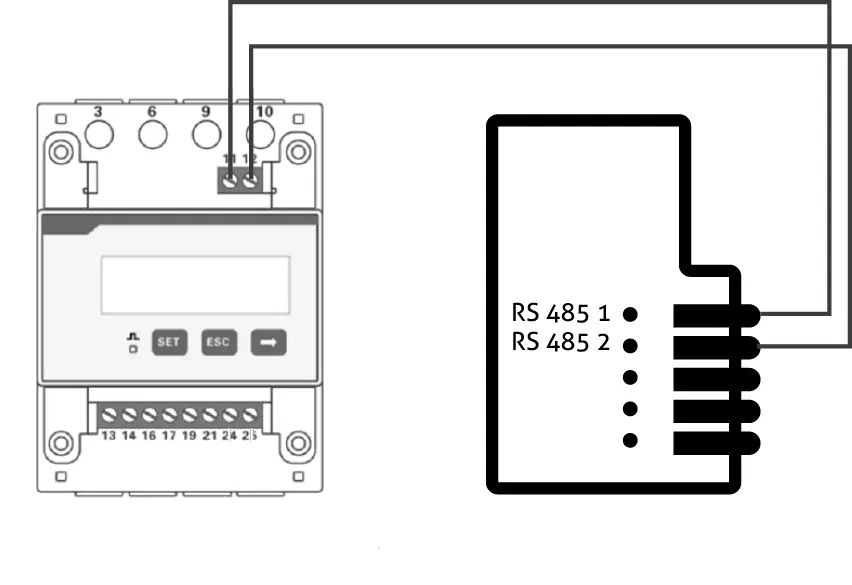
| PIN Meter | 11 | 12 |
| PIN Manager flex 1.5 | 1 | 2 |
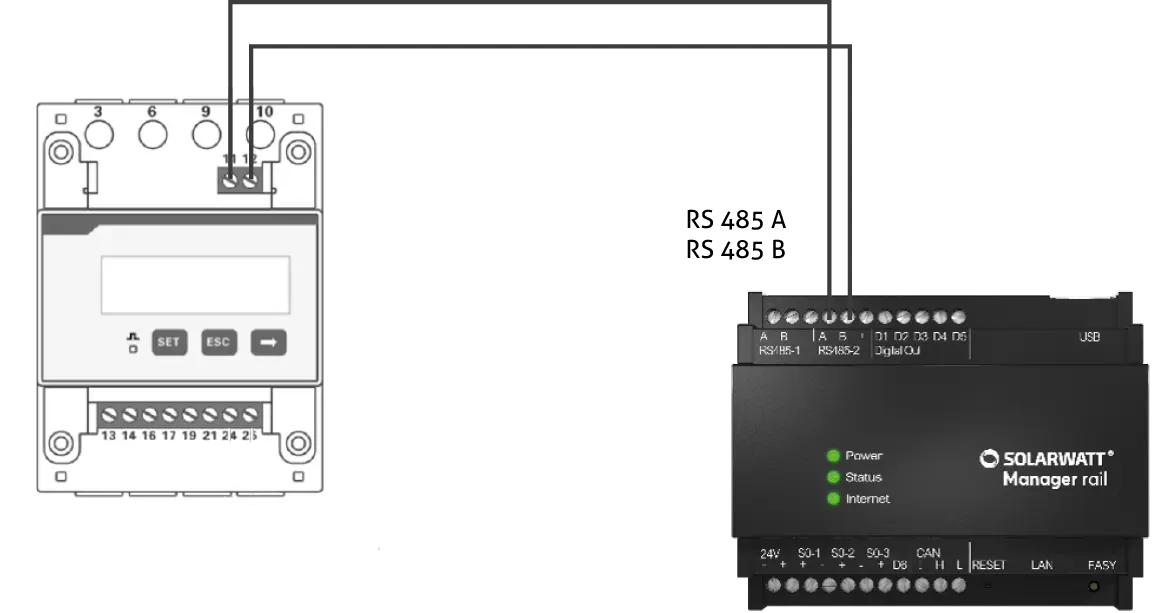
| PIN Meter | 11 | 12 |
| PIN Manager rail | RS485 A | RS485 B |
Device Search in SmartSetup
DTSU 666 via Battery System
When installing the DTSU 666 via Battery vision & Inverter vision, the device is added by selecting the vision driver.
Connect devices: Battery vision & Inverter vision
DTSU 666 via RS485
- Start SmartSetup.
- In the " Select or Search for Devices " dropdown menu, select the Chint DTSU666 driver
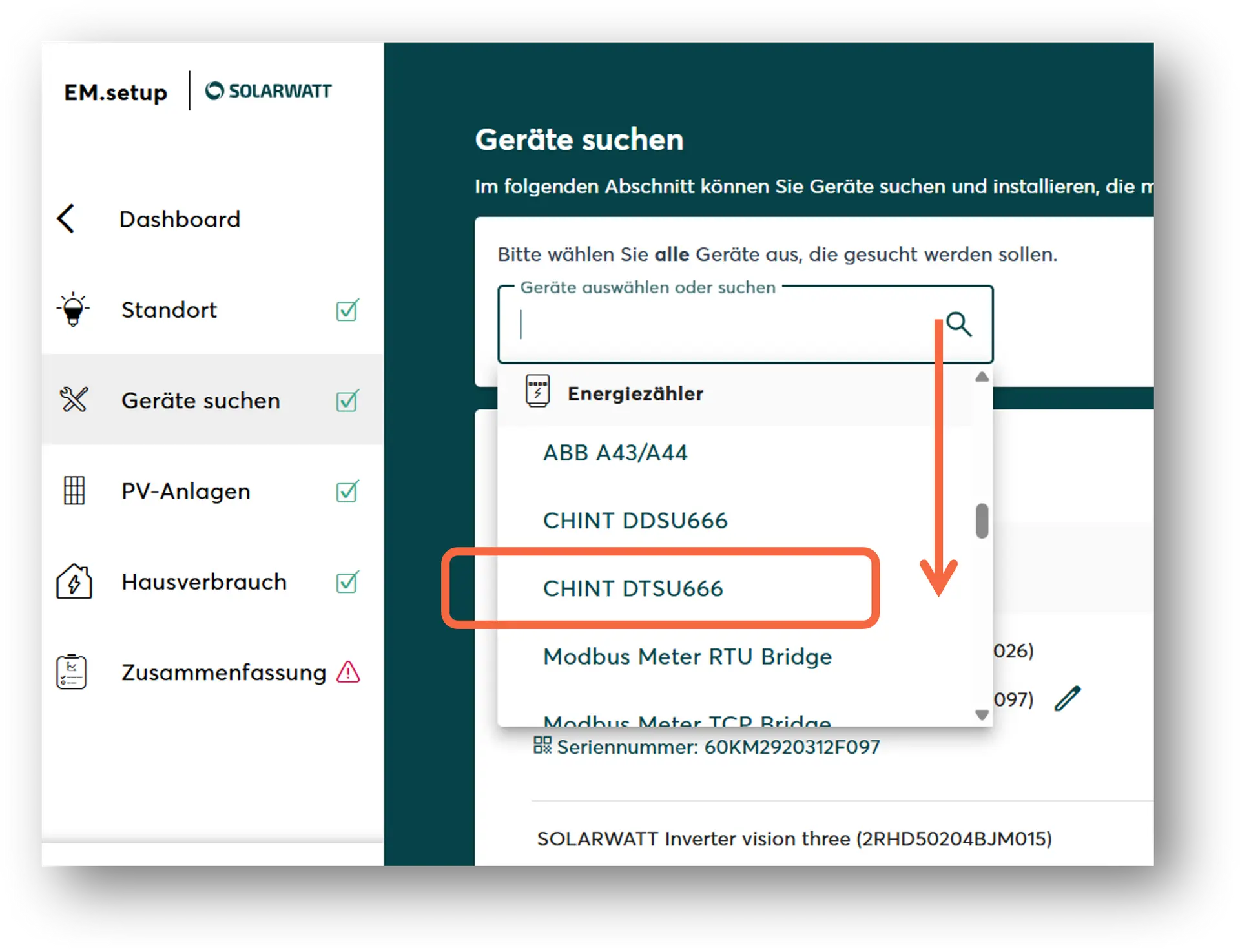
- Manager rail:
Select the occupied RS485 interface.
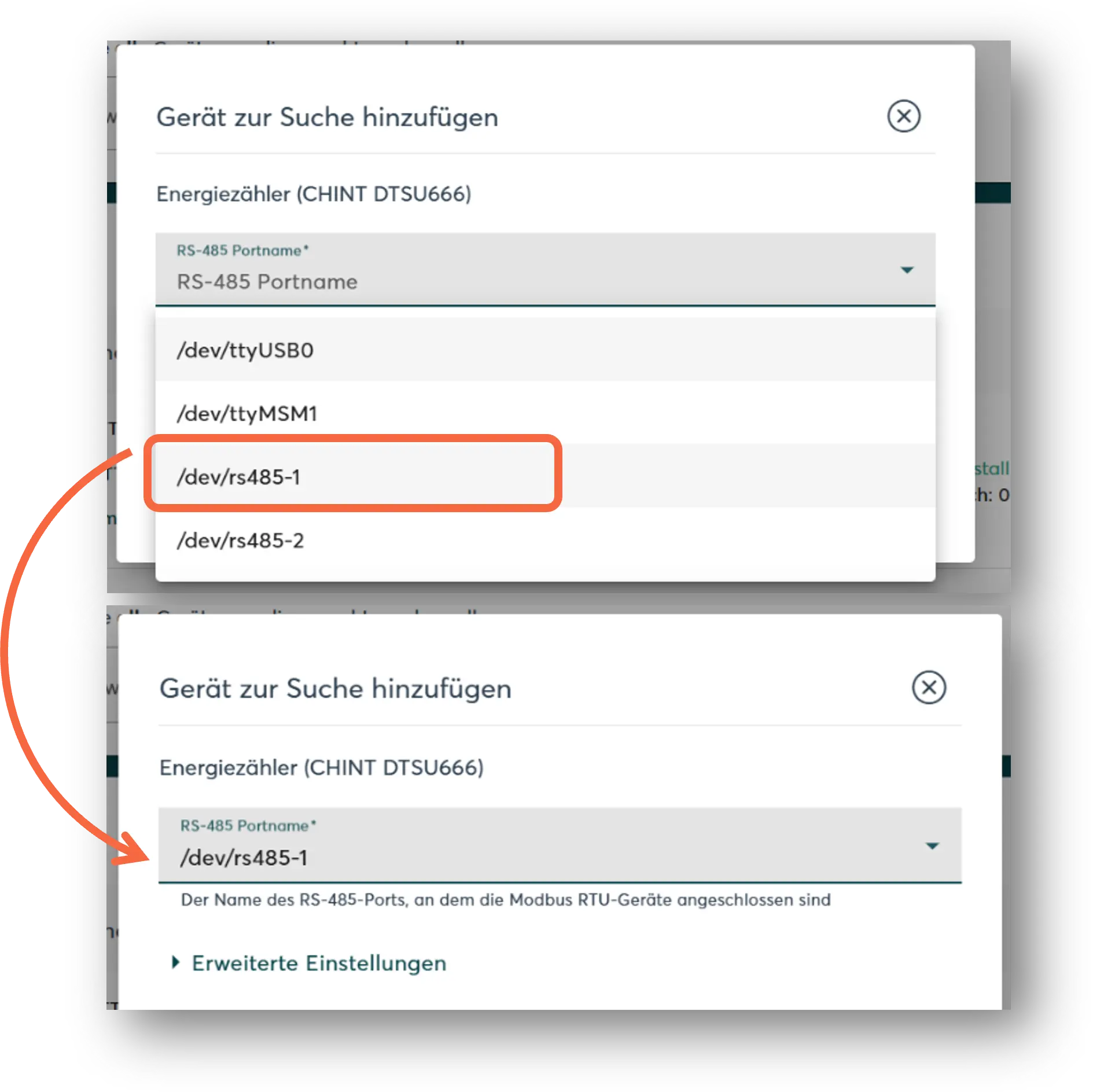
- Manager flex:
Select RS485.
- If necessary, add additional devices to the search.
- Once the search list is complete, click " Search for and Install Devices."
Correctly installed devices appear in the device list with the message: " Device is installed." The list also displays the current generation or consumption data.