- SOLARWATT Manager
- Frequently asked questions
- Networking and mDNS
Networking and mDNS
Network & mDNS – Installation & Troubleshooting Guide
Foreword
All Solarwatt components (Inverter vision, Battery vision, Charger vision, etc.) communicate locally with Manager flex / rail via mDNS. This enables automatic detection without manual configuration.
Regardless of Solarwatt products, mDNS is used by many major providers in the HEMS, Smart Home, and related sectors and represents the current industry standard.
If a manufacturer provides a cloud service for its products to speak with the internet, the device can connect to both it (over the internet) as well as to the SOLARWATT Manager (over the customer's local internet).
This can lead to the following scenarios:
- Internet communication works (the device reports as online on the manufacturer's cloud / their specific app), but the devices cannot see each other locally (the device is offline on the SOLARWATT Manager setup, portal or Home app) → local mDNS communication is blocked.
- Local communication works (the device is online on the SOLARWATT Manager), but the device is offline on the manufacturer's service cloud → the device is unable to communicate with the internet, but local communications / mDNS is working.
Troubleshooting
Despite the plug-and-play nature of the system, connection and stability issues may arise. Here are the most important troubleshooting tips to help you resolve issues on your own.
1. Basics
Devices use mDNS (UDP 5353) for local discovery.
mDNS stands for Multicast Domain Name System.
It allows devices on the same local network to automatically find each other and communicate by name without requiring a central DNS or configuration server (zero-config networking).
Important: Cloud connectivity does not guarantee local discovery. Both paths must function independently of one another with self-sufficiency.
2. Installation Checklist
- A single network: no VLAN / no guest network—all devices are on the same network
- Router: DHCP enabled, IGMP snooping enabled, multicast not blocked.
- Repeater/access point: must support transparent bridging; avoid MAC-NAT.
- Wi-Fi: Stable coverage; LAN preferred.
- Firmware: Devices and routers must be up to date.
- Verify cloud access and local mDNS detection during testing.
3. Typical Symptoms, Causes, and Router Settings
| Symptom | Possible Cause | Test | Where to check (router) |
|---|---|---|---|
| Devices cannot be found locally but are visible in the cloud | Router is blocking mDNS multicast | Discovery tool does not show any services | FRITZ!Box: Enable IGMP Snooping. Vodafone Station: Advanced → Enable Multicast. TP-Link: IPTV → Enable IGMP Proxy. WindTre Hub: Home Network → Enable IGMP Snooping. |
| Cloud offline, local detection working | Internet connection disrupted, DNS blocked | Local ping/discovery OK, cloud unreachable | Internet → Connection Status. |
| Frequent connection drops | Weak Wi-Fi signal, router in power-saving mode | Ping test & Wi-Fi Analytics | FRITZ!Box: Disable power-saving mode. Vodafone: Wi-Fi → Turn off power-saving mode. TP-Link/WindTre: Turn off power-saving features. |
| Device is accessible, but no data | Firewall is blocking UDP/5353 | Advanced Level: Check mDNS packets with Wireshark | Router firewall → Allow UDP 5353. |
mDNS isn't working or the connection keeps dropping --> Duplicate MAC addresses visible | Repeater/powerline is overwriting MAC addresses | `arp -a` or `fing` shows the same MAC address on multiple IPs | Replace with transparent bridge mode or use the FRITZ!Repeater in mesh mode. |
4. Troubleshooting Steps
Step 1: Basic Check
Are the LEDs working correctly? Are devices visible in the router’s client list? Is the web UI accessible?
- If not → Check the cabling and the device LEDs
Step 2: Validate the subnet
- Are all devices on the same subnet (192.168.xxx.xxx)?
- Is only one DHCP server active?
Step 3: Local discovery (mDNS)
dns-sd -B _http._tcp local (Mac/Linux).
Bonjour Browser (iOS) or Service Browser (Android).
- No entries → Router is blocking multicast.
Step 4: Cloud vs. Local Test
Briefly disconnect from the Internet → Can the devices still be found locally?
- Yes → Local connection is fine; cloud issue.
- No → Multicast filtering in the router.
Step 5: Advanced Analytics
arp -a: Check for duplicate MAC addresses.
Wireshark filter: udp.port == 5353 → check if mDNS packets are flowing.
Step 6: Escalation
Contact support with:
Router model + firmware
Network configuration (LAN/Wi-Fi/repeater?)
Cloud status vs. local detection
Logs/screenshots (Fing, Wireshark, ARP)
5. Best Practice Recommendations
FRITZ!Box (7590/7530/4060) with FRITZ!Repeater 1200 AX or 3000 AX in a mesh network.
Transparent bridging only; no MAC-NAT repeaters.
Allow multicast/UDP 5353 by default.
When performing Analytics, always compare cloud status with local detection.
If you frequently switch routers or Internet service providers: Use a subrouter (a stable router behind which the entire network is consolidated). The provider’s DSL router serves solely as a DSL access point; the only device connected to it is the subrouter.
6. Networking FAQs
- Changed routers? Devices LANned in should automatically rediscover each other via mDNS (though you may need to re-connect devices connected via Wi-Fi).
- Cloud works, but devices can’t see each other locally? Router is filtering multicast → Adjust IGMP settings.
- Are static IPs necessary? No, only in extremely rare cases when mDNS cannot be made to work at all, or as a temporary solution. DRAWBACK: The IP must first be set in the router, then in the SOLARWATT Manager. This process must be repeated every time the router is replaced.
- Even the solution to supposed problems can turn out to be a false conclusion—e.g., in the case of
- Duplicate MAC addresses during scans? Replace the repeater/powerline adapter with a device supporting 4-Address Mode/Mesh.
- Can Powerline be used? Only if transparent Layer 2 bridging is supported.
Practical Example Using a Network Scan
Even simple scans can provide valuable notes about network quality.
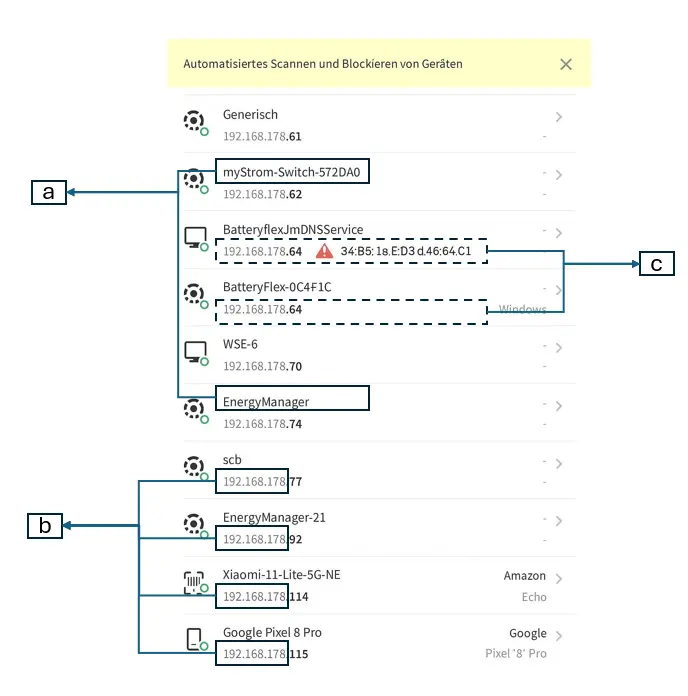
Example: Network Scan
a) mDNS services are visible
Names such as BatteryflexJmDNSService, EnergyManager, scb, echoshow, etc., appear. This means: Devices are actively broadcasting their presence on the network → mDNS is working as intended.
b) All devices on the same subnet (e.g., 192.168.178.x)
→ No VLANs or guest networks—that's ideal for mDNS.
c) Duplicate MAC address when using two Battery flex devices
This is a clear indicator of an error: Typically caused by repeaters or powerline adapters that do not transparently forward MAC addresses (MAC-NAT).This results in devices on the network not being uniquely identifiable → mDNS may fail, or devices may “disappear” or be overwritten.